MuteMe
Shops & Retail in El Dorado Hills · Web shop on Shopify · muteme.com
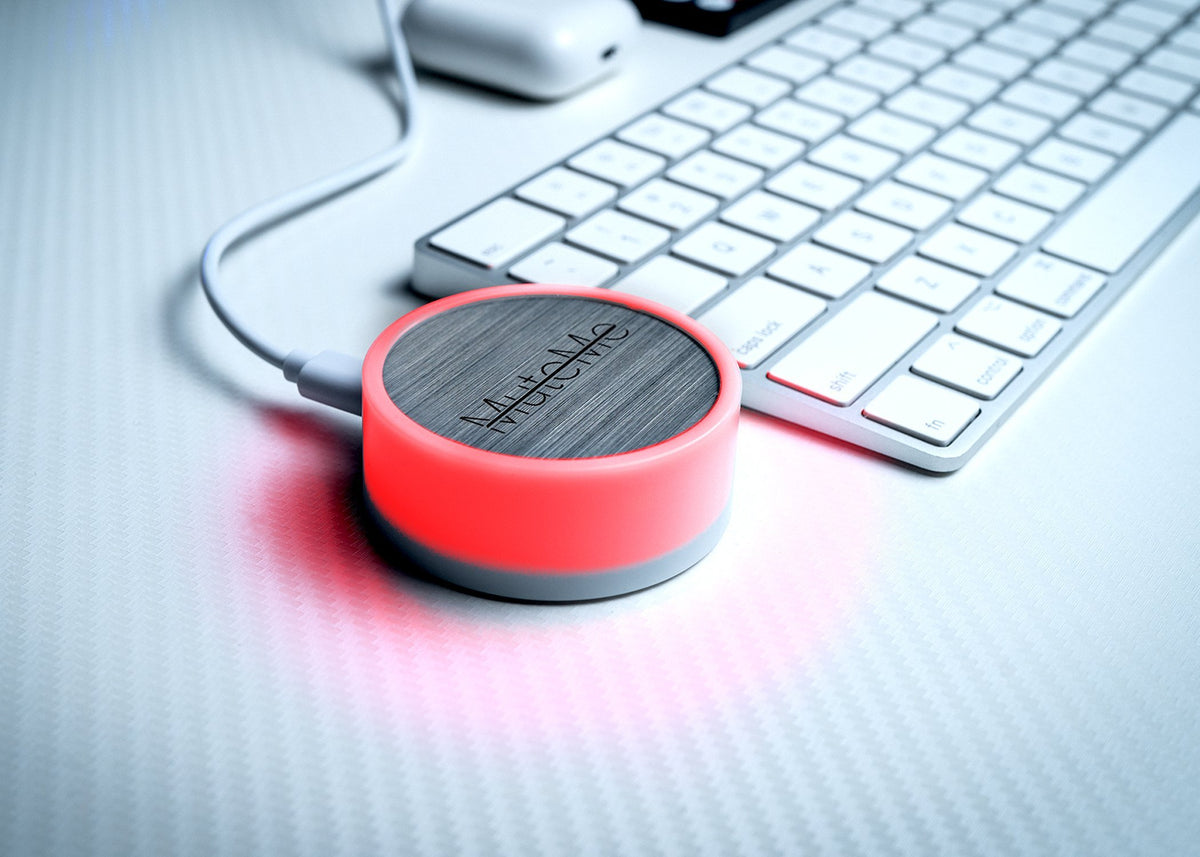
MuteMe Never hear or say "you're on mute" again. Our physical illuminated mute button works with Zoom, Webex, Teams, Skype, Google Meet, and many more and helps increase productivity, boost confidence, and decrease interruptions. Compatible with Windows, macOS, and Linux; MuteMe is a must-have tool
- Country
- United States
- Phone
- (800) 952-5210
- support@muteme.com
- Payment
- iDEAL
- Languages
- English, French, German, Spanish
- Ships to
- Worldwide
- Shipping information
- Shipping page
What they sell
Web shop on Shopify: 13 products, $5–$75
 MuteMe Enterprise Packs$75–$269In stock
 Mutesync - The Physical Mute Button$39.99In stock
 MuteMe - Custom Enterprise Engraved$49In stock
 MuteMe - Personalized Engravings$49In stock
 MuteMe - Evaluation Package$50In stock
 USB 3.0 Type A Extension Cable - 9ft$7In stock
 4 Port USB C to USB A Hub$7.99In stock
 4 Port USB A to USB A Hub$7.99In stock
 Flexible Metal USB A to USB A Extension Cable$5In stock
 MuteMe - Custom Text Engraved$49In stock
 MuteMe Mini - The Illuminated Mute Button$24.99In stock
- MuteMe - The Illuminated Mute Button$39.99In stock
12 of 13 products, prices $5–$75, as published by the shop (read from the shop 2 h ago; the shop last changed its products 23 November 2026; last change seen here 2 h ago). Prices and stock change; the shop’s website has the current ones.
About
To date, there have been over 1000 conversation exchanges giving us feedback and asking for feature requests. Because of your feedback, we have had 17 design changes, 11 PCB revisions, and 8 major SW upgrades in a matter of months (and many times just over the last few weeks) Looking back, here are key improvements you were responsible for driving: From our latest milestones back to the beginning. Scroll to explore.
Frequently asked questions
Order
Order → MuteMe OriginalMuteMe MiniMuteMe ClickMuteMe EngravedMutesyncAccessories
Your status. Your colors.Red / green in meetings. Dim white between them.
In a meetingPreviewingMutedRedBrightDimPulseUnmutedGreenBrightDimPulseNot in a meetingPreviewingMutedWhiteBrightDimPulseUnmutedWhiteBrightDimPulse
Browse topics 32
Search topics Clear Find a topic, then open its posts. 32 topics Alpha Testing↗Audio Features↗Beta Testing↗Brightness Control↗Business↗Conferencing Platforms↗Customization↗Delivery Timeline↗Final Packaging↗Getting Ready↗Individual Customization↗Manufacturing↗Marketing↗New Product↗Operating Systems↗Order↗Packaging↗PCBs↗Privacy↗Push-to-talk↗Remote Work↗Shipping↗Staples↗Starting Off↗Survey↗Team↗Teams↗Technology↗Updates↗User Preferences↗WFH↗Zoom↗ No matching topics. Try another word or clear your search.
View the older Teams API pairing steps
Historical reference only. Update MuteMe and use the current setup above. The following workflow depends on a Teams version and account that still expose the third-party device API; it is not a fallback guaranteed to work today. Connect your MuteMe device and run the older MuteMe app. In Teams desktop, open Settings and more → Settings → Privacy → Third-party app API → Manage API. Enable the API if the option is available, then join a meeting. Press your device and accept the connection request only if it is the MuteMe connection you initiated. Microsoft’s documentation describes a Generate op
Watch the archived pairing video
This video shows the pre-0.27.2 Teams API workflow. Its menus and pairing steps do not apply to the current native setup.
Official reference links
Microsoft: Teams Classic is no longer available Microsoft: third-party device pairing (legacy reference) Apple: Accessibility permissions Apple: Automation permissions
How does MuteMe Work?+
MuteMe uses our proprietary technology which encompasses the illuminated device and companion app on your computer to mute/unmute your default microphone AND sync with popular conferencing software such as Zoom, Teams, WebEx, Google Meet, GoToMeeting and many many more. MuteMe is a safer and more compatible way to ensure that you are muted.
What conference applications does MuteMe work with?+
MuteMe works with supported meeting apps including Zoom, Microsoft Teams, Webex, Google Meet, Slack and Discord. Available sync levels depend on your operating system, app version and meeting app.Check the compatibility matrix and follow your app’s setup guide. macOS Slack Full Sync is included in 0.29.6. Upgrade older builds to use the current integration.
Can I use MuteMe for dictation?+
Yes, in 0.29.6. Use a MuteMe+ action to turn speech into text outside meetings. Your MuteMe button controls dictation; audio comes from your computer’s microphone or headset.Local Whisper requires microphone permission, an initial model download of about 148 MB and a setup speed check. It can transcribe offline after setup. Built-in Windows and macOS dictation have their own recognition and privacy settings. Start with the Dictation setup guide and Downloads.
Will it work with USB, Bluetooth, and wired microphones (my headset)?+
Yes, MuteMe works with all types of microphones as long as they connect to your computer. This includes USB mics, wired headsets, and Bluetooth devices like AirPods. We recommend downloading the MuteMe app and giving it a try with your setup before purchasing the hardware. You can download the app at muteme.com/pages/downloads.
Does MuteMe support Push-to-Talk?+
Yes, MuteMe supports Push-to-talk. In addition, users have the options to:1) set the color of when they not in a conference call (ie, MuteMe detects when a conference application is launched). Use Case: others in your household will know when you are engaged in a meeting.2) set the color for mute3) set the color for unmute4) select Toggle, push-to-talk mode, or push-to-mute mode.There are 8 color options (including LED off)
What do I need to install to make MuteMe work?+
MuteMe requires a downloadable MuteMe software application which allows you to pick and choose your preferences (like colors, etc). You typically do not need administrative permission to use the MuteMe Application and Device, although each company policy can vary. If you can install local applications, like Zoom, you should have no problem downloading MuteMe's software. Our device is a HID device so no drivers are installed.
Configuring Zoom to work with MuteMe+
In Zoom, if MuteMe only controls the mute/unmute status while the whole button bar at the bottom in zoom is showing, then your microphone/settings may need adjusting.First please make sure that in our application in the "App Sync Settings" section that the Zoom sync level is set to either level 2 or 3. Language Settings: Zoom works best in English (multi-language support coming soon). Right click on Zoom icon in icon tray < switch languages < English.Zoom Default Microphone: Ensure the correct default microphone is selected.Zoom Settings for Windows/Linux:- go to Settings < General < select 'A
Configuring Teams to work with MuteMe+
Current MuteMe builds support native Microsoft Teams synchronization on Windows and macOS. The older third-party API setup is a separate legacy option; its account requirements do not apply to every Teams integration.Follow the Microsoft Teams setup guide for your operating system, sync level and permissions. 0.29.6 includes additional macOS Teams meeting-detection and sync fixes.
Proper MuteMe Setup+
Use the installer for your supported operating system: Windows 10/11 64-bit, macOS 12 or newer, or a compatible Linux x64 system. See Downloads and Linux setup for current requirements.Connect MuteMe with a USB data cable and try a direct computer connection when troubleshooting.Select the microphone you use for calls and choose the appropriate app sync level.Follow your meeting app’s setup guide for language, permissions and supported controls.Check your app version in Support. Install the current 0.29.6 production release from Downloads for the latest features and fixes.Test mute and unmute
What are sync levels?+
In order to better communicate how MuteMe will work with the various video conferencing applications that you use, we came up with Sync Levels.Sync Levels explain how we work with video conference applications like Zoom or Teams. Each level represents a different amount of Sync.Level 1: Microphone SyncOur tech allows the system's default microphone to stay in sync with MuteMe. At this level, the mute/unmute button in the conferencing app won't change when your MuteMe status changes. Use this setting when you want to mute but don't want others to know you are muted.Level 2: Mute/Unmute Button S
MuteMe Keeps muting/unmuting by itself+
Looks like your computer may have conflicting applications sending microphone commands at the same time. We recommend:1) close applications you are no longer using (ex: you may have both Zoom and Teams active)2) turn off microphone polling. Do this by going to microphone settings, selecting the microphone, and unchecking "Periodically check if this microphone was muted/unmuted"3) There could be a issue with EMI or electromagnetic interference, click here to learn more and update your firmware.
MuteMe Overview+
MuteMe is USB peripheral device used for those that engage in virtual meetings:- MuteMe uses our patent-pending technology and is the first illuminated button to both control your microphone AND sync with the conference application tool of your choice.- MuteMe lets you and others around you know when you are in a meeting and when you are muted/unmuted. This is ideal when working from home or when you get numerous interruptions.- MuteMe allows you to customize your color selection for each status. We are keeping folks preferences and visual impairments in mind. Today, there are 8 color options
What are the unique features of MuteMe?+
MuteMe has:- Capacitive Touch- Multi-color status selection (8 color options) to mute/unmute- Multi-mode selection: toggle, push-to-talk, or push-to-mute - Sleep mode- Brightness control (2 settings)- Pulse control (2 settings)- Multi-platform sync - syncs across multiple conferencing apps- Multi-OS compatibility - macOS, Windows 10, and Linux- USB-C connector. (USB-C/A cable and USB-A to USB-C adapter included in purchase).- Illuminated lighting 360° around the device to inform mute/unmute status to the user and those physically around you.
What operating systems does MuteMe work with?+
Current installers are available for Windows 10/11 64-bit, macOS 12 or newer with separate Intel and Apple Silicon downloads, and compatible Linux x64 systems using DEB or RPM packages. Linux support depends on your distribution, audio setup and meeting app; it is not limited to Ubuntu or system-microphone control in every integration.See Downloads, the Linux setup guide and the compatibility matrix. There is no ChromeOS desktop app. Optional local Whisper Dictation in 0.29.6 has additional requirements.